Resetting your wallet on macOS
This page shows how to make Unigrid forget the wallet it opens on, so that it starts on the welcome screen again. How to reset your wallet explains why you might want to, what the files are, and how to get back to a wallet afterwards.
⚠️ Warning: anything you delete is deleted permanently.
A file deleted in Terminal skips the Trash, and one in the Trash is gone once the Trash is emptied. Nobody can bring it back. Write down the recovery phrase of every wallet you want to keep, and make the copy in step 2, before you delete anything.
1. Quit Unigrid
Close the Unigrid window with the × button in its top right corner. Unigrid quits when its window closes.
2. Make a safety copy
Open Terminal (in Applications > Utilities) and run:
cp -a ~/.janus ~/janus-copy
This copies everything Unigrid keeps to a folder named janus-copy in your home folder. If something goes
wrong, quit Unigrid, delete .janus and rename janus-copy back to .janus. Keep the copy private: it holds
your wallets, protected only by their passwords.
3. Delete the file named wallet
Unigrid keeps its files in the hidden folder .janus in your home folder. The file wallet in it names the
wallet Unigrid opens on, and holds no keys. Delete it in Finder or in Terminal, whichever you prefer.
In Finder
- In Finder choose Go > Go to Folder…, type
~/.janusand press Return. The folder opens even though it is hidden. To see hidden files elsewhere, press Cmd+Shift+. in any Finder window. -
Select the file named wallet. Take care not to pick the folder wallets next to it, which holds the wallets themselves.
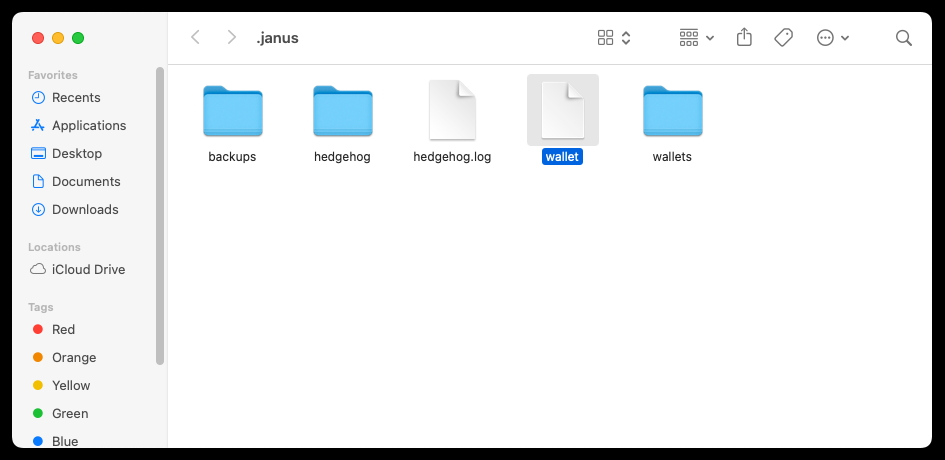
- Press Cmd+Delete, or choose File > Move to Trash.
Or in Terminal
rm ~/.janus/wallet
Together with the safety copy from step 2, and a look at what is left:

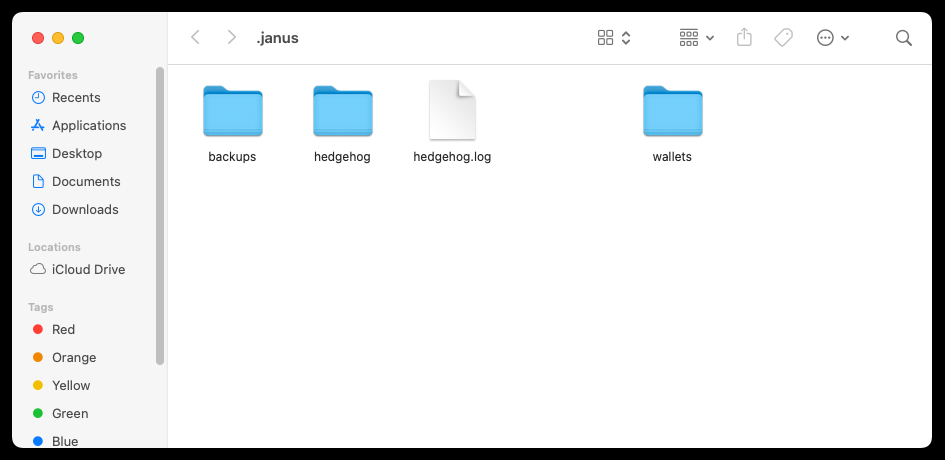
Either way, the folder now looks like this. The wallets themselves are still in the folders wallets and
backups:
4. Start Unigrid
Open Unigrid from Applications. It opens on the welcome screen, where you can Create a new wallet or Import existing wallet:
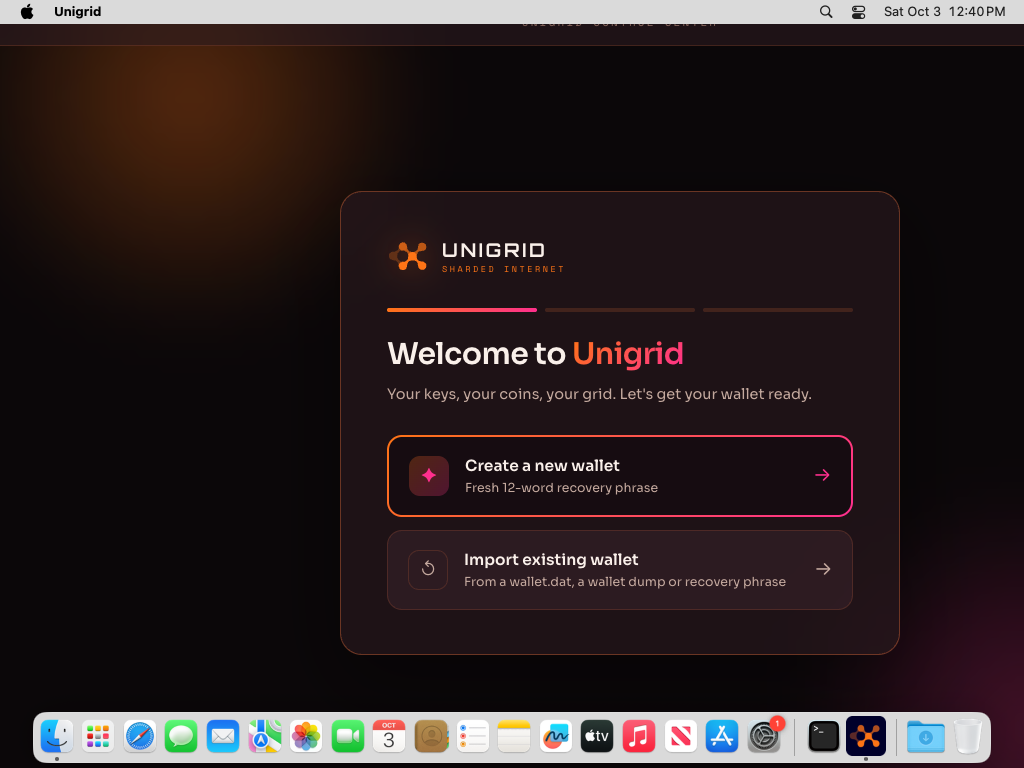
To return to a wallet you had before, choose Import existing wallet and follow Getting back to a wallet.
The screenshots were taken on macOS 15. The wording on other versions differs a little.