Installing Unigrid on macOS
The Unigrid installers are not yet signed with an Apple Developer ID certificate, so macOS stops the app the first time you open it and asks you to approve it. This page walks through that. You do it once per install.
The macOS installer is for Macs with Apple silicon (M1 and later).
1. Download and install
- Download
janus-<version>-macos-arm64.dmgfrom the Releases page. - Optionally check it against
SHA256SUMS, which is on the same page:shasum -a 256 janus-<version>-macos-arm64.dmg - Open the
.dmgand drag Unigrid into Applications.
2. Open it, and let macOS tell you no
Open Unigrid from Applications. macOS shows this and does not start the app:
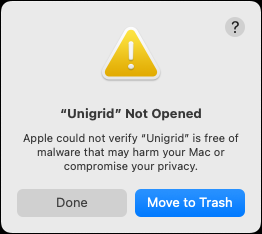
Click Done. Do not click Move to Trash.
3. Approve it in System Settings
- Open System Settings and choose Privacy & Security.
- Scroll down to the Security section. It now says “Unigrid” was blocked to protect your Mac.
- Click Open Anyway and enter your password or use Touch ID when asked.
- Click Open Anyway once more in the confirmation that follows.
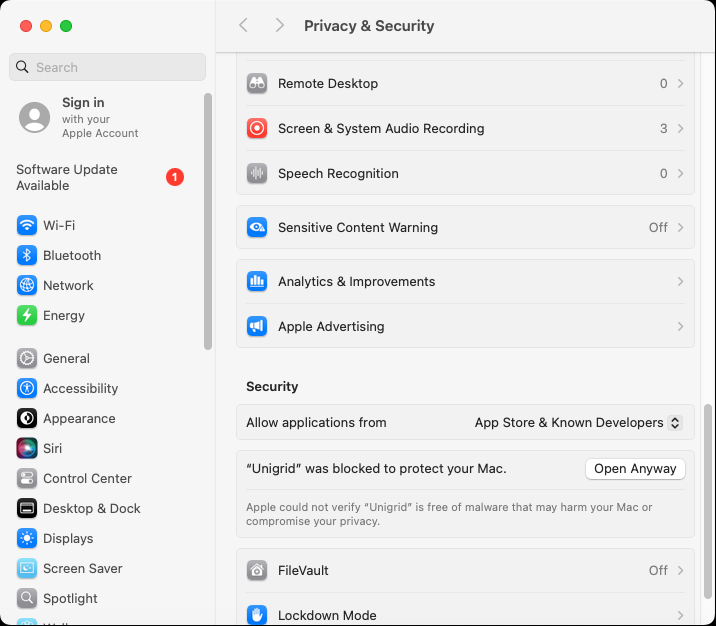
Unigrid opens, and from now on it opens like any other app. If the Open Anyway button is not there, open Unigrid again from Applications so that macOS blocks it afresh, and then come back to this page of the settings.
If it does not work
-
“Unigrid is damaged and can’t be opened” is macOS’s way of saying a downloaded file is quarantined. Run this once in Terminal, then open the app again:
xattr -dr com.apple.quarantine /Applications/Unigrid.app -
On macOS 14 and older you can also Control-click Unigrid in Applications, choose Open, and then Open again in the dialog. macOS 15 removed that shortcut, which is why the steps above go through System Settings.
First start
Janus downloads Hedgehog the first time it runs and checks its signature before using it. That needs an
internet connection and takes a moment. Your wallets and backups are kept in a folder named .janus in your
home folder.
Uninstalling
Drag Unigrid from Applications to the Trash. Delete the .janus folder in your home folder only if you also
want to remove your wallet backups, and make sure you have your recovery phrase before you do.
The screenshots were taken on macOS 15. The wording on other versions differs a little.